
By Tom Zanoli • December 15, 2025 • Updated Junel 7, 2026
If you sell sports cards online—especially graded and high-end NBA cards—your biggest bottleneck is usually listing and organizing inventory, not finding cards to sell.
When I started my store, I manually took photos and created listings one card at a time. That process worked for the first couple hundred cards, but once my inventory passed 1,000 cards, it was obvious I needed a faster way to scan, catalog, and export everything to my website.
That’s when I subscribed to Kronozio’s Kronocard (I’m on the Premium / Pro Lite plan with a few add-ons). After using it for about a year, here’s my honest, collector-focused Kronocard review.
What Is Kronocard?
Kronocard is a desktop application designed to:
- Scan sports and trading cards
- Use AI to recognize the card and fill in fields
- Help you manage inventory
- Push listings to marketplaces (eBay, Whatnot, etc.)
- Export data so you can list cards on your own site
On paper, it sounds like a dream—especially if you sell a lot of singles.
In reality, it’s powerful, but not perfect—especially for NBA cards, which is most of what I sell.
My NBA Sports Card Setup: Scanner, Cards, and Workflow
I tested several of the scanners recommended by Kronozio and ultimately kept the:
Other scanners I tried and returned due to various issues:
- Xerox DocuMate 4700
- Ricoh fi-8170
I scan cards inside their holders (mags, toploaders, or slabs). The image quality is good enough for my listings, and it saves a ton of time compared to taking cards in and out of holders.
Scanning Speed Benchmark
Once I dialed in the layout on the scanner bed, here’s what I’m able to scan in about 15 minutes:
| Scanner | Card Type | Card Position | Cards Per Scan | Cards in 15 Minutes* |
|---|---|---|---|---|
| Epson Perfection V600 | Magnetic (mags) | Horizontal | 4 | ~60 |
| Epson Perfection V600 | Toploaders | Horizontal | 6 | ~100 |
| Epson Perfection V600 | Graded / Slabs | Portrait | 4 | ~30 |
*Includes time to reload the scanner bed and handle minor errors.
I experimented with multiple orientations and card layouts. Pushing more cards per scan usually created more errors (partial scans or missed cards), which ended up costing more time than it saved.
Kronocard’s AI Accuracy (Especially for NBA Cards)
Kronozio advertises high AI accuracy, but in my real-world usage with NBA cards I see closer to 40% usable accuracy:
- Some key fields are left blank
- Some fields are combined (for example, product and parallel type in a single field)
- The Year field is often wrong
- Very few cards come through “ready to list” without edits
That doesn’t mean the software is bad—in fact, even at 40% accuracy, Kronocard still saves me a ton of time. But if you’re expecting “scan and instantly list with no edits,” that’s not where the product is today, especially for basketball.
Kronocard Pricing & Add-Ons (Razor and Blades Model)
Over the last year I’ve seen several changes in how Kronocard is packaged and priced. The best way to describe it is a “razor and blades” model:
- You pay for a core plan (the razor)
- Then you add extras as you scale (the blades)
Here’s a simplified breakdown of the core pieces I use. Pricing changes, so treat this as a ballpark view rather than exact numbers:
| Feature / Plan | Approx. Cost | AI Scans Included | eBay Listings Included |
|---|---|---|---|
| Kronocard Pro Lite (Annual) | ~$149 / year | 10,000 | 0 |
| eBay Listing Add-On | ~$8 / month | 500 | 500 |
| Export Add-On | ~$15–24 / month | N/A | N/A |
For me, the Export add-on is critical because I’m moving away from eBay and listing mainly on my own website. If you run your own store (WooCommerce, Shopify, etc.), factor this extra monthly cost into your decision.
What Fields Kronocard Actually Exports
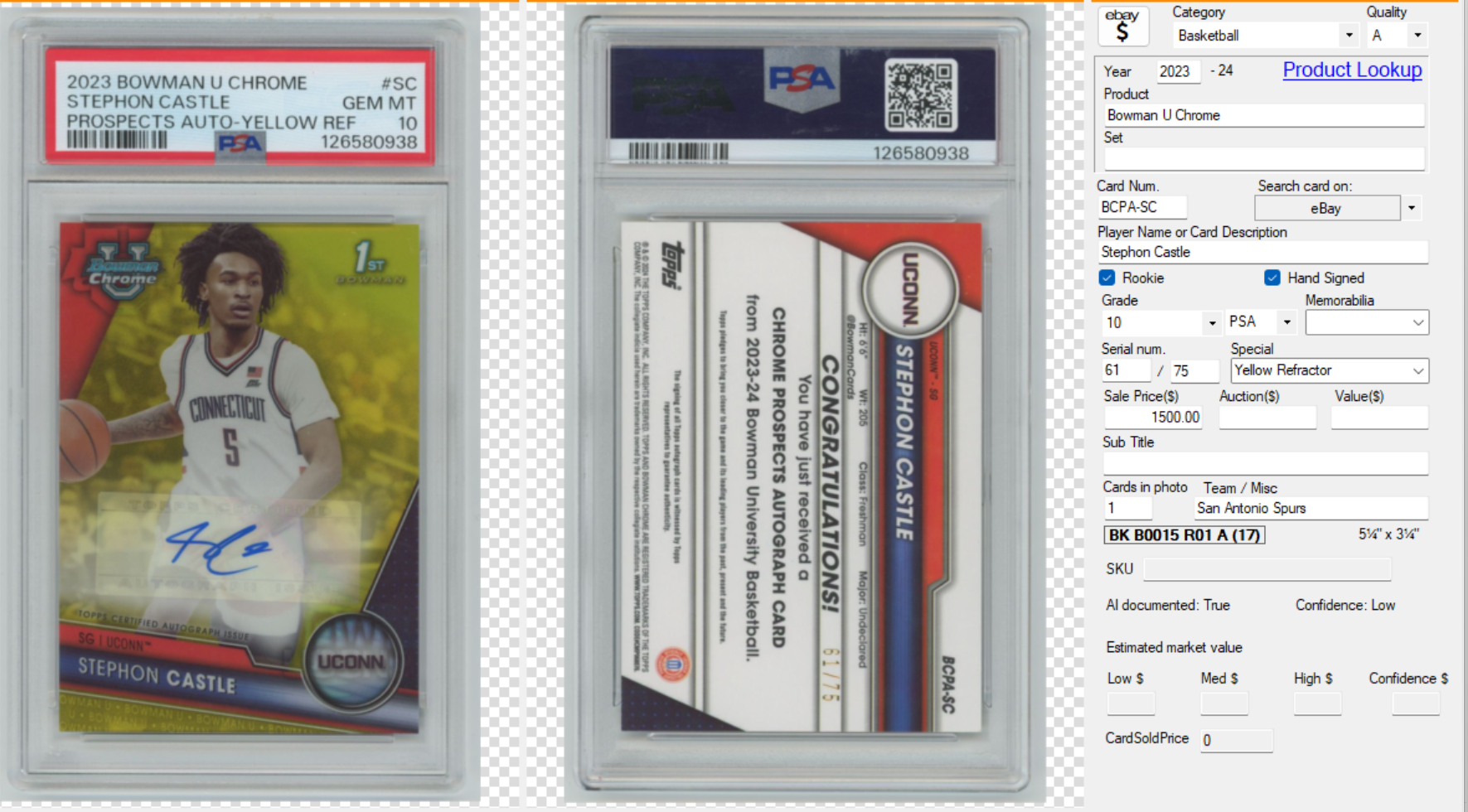
When you export your data, these are the core fields available and how they usually look for me:
| Field Name | Typical Result |
|---|---|
| Year | Often inaccurate and needs review |
| Product | Includes both product name and parallel/speciality (e.g., “Bowman U Chrome Yellow Refractor”), which makes sorting harder |
| Set | Rarely populated automatically |
| Card Num | Usually populated, but still worth checking |
| Player Name / Card Description | Often combined; needs cleanup for SEO-friendly titles |
| Rookie, Hand Signed, Grade, Grader, Memorabilia | Almost never populated by AI |
| Serial Number, Special, Sub Title | Mostly blank and require manual entry |
| Sales Price, Auction, Value | Only filled if you manage pricing directly in Kronocard |
| Cards in Photo, Team | Can be helpful but still needs review |
If you want clean, consistent data on your website—especially if you care about filters like Player, Team, Year, Parallel, Grade—expect to spend time reviewing and fixing exports.
Where Kronocard Falls Short for NBA Sports Cards
Here are the main issues I’ve run into:
- Key fields are often blank
Set, Grade, Grader, Memorabilia, Special, and Sub Title rarely populate. If you rely on those for shoppers to filter your cards, you’ll be doing manual updates. - Year is frequently wrong
This matters for both SEO (“2023-24 Stephon Castle auto”) and for buyers using search filters. - Product field combines too much information
Example: “2023 Bowman U Chrome Yellow Refractor” ends up in one Product field. That makes it harder to separate the Product (“Bowman U Chrome”) from the Parallel (“Yellow Refractor”) when you export to your own site. - Almost every card needs a touch-up
If your goal is a clean, professional catalog, plan to review each scan. I look at every card for: player, year, team, parallel, and serial number. - No built-in pricing guidance
Kronocard doesn’t automatically suggest prices from recent sales. You still have to click out to eBay or other marketplaces to check sold comps. - Export pricing is on the high side
If you want your own ecommerce store and don’t want to rely solely on eBay or Whatnot, the export add-on is basically mandatory—and it’s not cheap if you’re a smaller seller.
What I Like About Kronocard
Despite the issues, there are several big reasons I keep using it.
1. Massive Time Savings
Even at around 40% usable AI accuracy, I can still:
- Scan hundreds of cards per hour
- Skip manually photographing each card
- Use batch processes for exports and edits
For a growing NBA card inventory, that’s huge.
2. Solid Scanning Workflow
The scanning interface is reliable once you learn:
- How many cards to place per scan
- Which orientation works best for each holder type
- How to avoid cut-off edges and missed cards
3. Strong Inventory Management
Kronocard shines as an internal inventory system:
- Easy to search by player, team, or product
- Helpful when you’re tracking thousands of cards
- Useful even if you’re not actively listing every card online
4. Customizable Export Templates
You can build export templates that match your ecommerce platform’s requirements:
- Map Kronocard fields to your store’s fields
- Include only the columns you care about
- Re-use the same template for future batches
Tips to Get Better Results with Kronocard
If you’re thinking about using Kronocard to manage your sports card or NBA card collection, here are some practical tips from my experience:
- Invest time up front testing layouts
Run test scans with different card orientations and quantities. Track which layouts give you the fewest errors. - Create a consistent naming structure
For example: Year – Brand – Set – Player – Parallel – Serial – Grade.
This helps your SEO and makes your store look professional. - Decide which fields you’ll always fix manually
For me, that’s: Year, Product, Player, Team, Parallel, Serial Number, Rookie flag. Build a habit of editing those fields right after AI recognition. - Use image alt text for SEO on your site
When you upload images (like slab scans or Kronocard screenshots), use alt text such as:- “2023 Bowman U Chrome Stephon Castle Yellow Refractor auto PSA 10”
- “Kronocard interface scanning graded basketball cards”
- Batch your pricing research
Instead of pricing each card one by one, group similar players or sets and check recent sales for all of them at once.
So… Is Kronocard the Best App to Scan and Manage Your NBA Sports Cards?
If you’re a serious seller with a large inventory—especially in sports cards or NBA cards—Kronocard can be a huge time saver and a strong inventory management tool.
However, it’s not a magic “scan and forget” solution:
- Expect to review and correct most cards.
- Budget for add-ons like exports if you sell on your own website.
- Be prepared to invest time building a clean, consistent data structure.
For my store, the trade-off is worth it. I can scan hundreds of cards in a session and then clean up the data for SEO-friendly, shopper-friendly listings on my own site.
If you’re just starting out with a small collection, manual listing might be enough. But if you’re scaling into hundreds or thousands of sports cards—especially graded NBA cards—Kronocard is absolutely worth considering, as long as you go in with realistic expectations. Thanks for reading! If you want to learn more about me and the topics I’ll be covering, check out this post.